
Compatibility · 2026
Your iPad, on a big screen
An iPad connects to a monitor with a single USB-C cable. What you get then depends on the model: some iPads only copy their screen, others open a real second workspace with its own windows. Here is how to know which case is yours, and how to set it up properly.
Two modes: mirror or extend
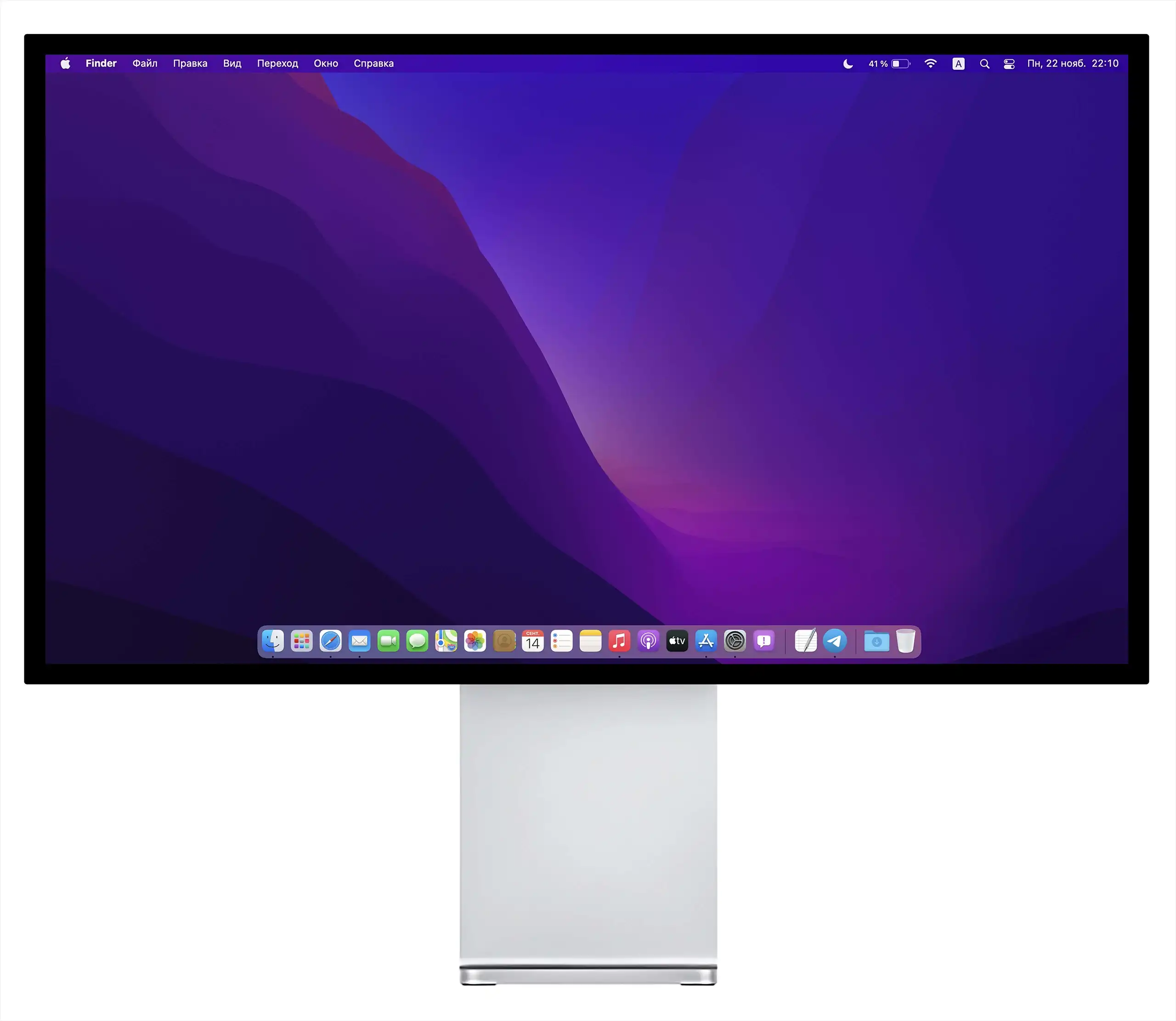
Mirroring shows exactly the iPad screen on the monitor. It is the mode of every iPad with a USB-C port. Since the iPad screen is not in 16:9 format, the image appears with black bars on each side: useful for a presentation or a film, less so for working.
The extended display turns the monitor into a second workspace. With Stage Manager, you place apps and windows on the monitor, resize them and use them with a keyboard and a mouse or trackpad, while the iPad screen remains available. This is the mode that really changes how you use an iPad.
Compatibility
Which iPads extend their display
| iPad | On an external monitor |
|---|---|
| iPad Pro 13" and 11" (M4 and later) | extended display with Stage Manager, up to 6K |
| iPad Pro 12.9" (5th generation and later), iPad Pro 11" (3rd generation and later) | extended display with Stage Manager, up to 6K |
| iPad Air (5th generation, M2, M3 and later) | extended display with Stage Manager, up to 6K |
| iPad and iPad mini with USB-C | mirroring of the iPad screen |
| iPad with a Lightning port | mirroring, through an HDMI adapter |
According to Apple's documentation for iPadOS 26. The iPads with an extended display are those with an M-series chip.
One cable for everything
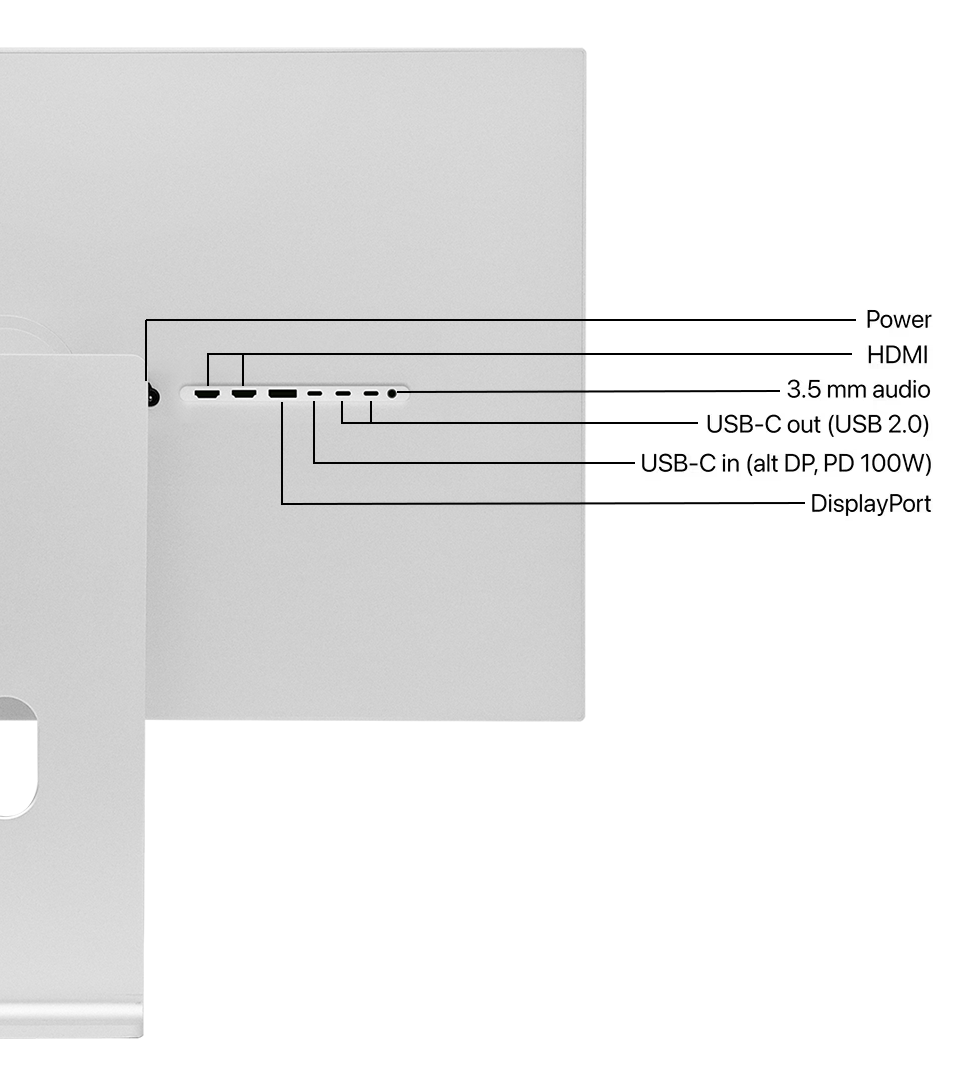
Every Kuycon monitor has a USB-C input that carries the image, the USB data and up to 100 W of charging. Connected to an iPad, this single cable displays the image, charges the iPad and gives it access to the USB ports of the monitor. There is no driver and no app to install: the iPad detects the monitor as soon as it is plugged in.
Plug the keyboard and the mouse into the USB ports of the monitor, or pair them over Bluetooth: in both cases, the iPad uses them as soon as it is connected. When you leave, unplug a single cable and the iPad leaves with everything it needs.
Setup
Set it up in four steps
Connect the USB-C cable
Plug the cable into the USB-C input of the monitor and into the iPad. If the monitor does not switch to it on its own, select the USB-C input with its buttons or its remote control.
Turn on Stage Manager
Swipe down from the top-right corner to open Control Center, then tap Stage Manager. You can also turn it on in Settings, under Multitasking & Gestures.
Choose the arrangement
In Settings, Display & Brightness, the connected monitor appears: choose to use it as a separate display or to mirror the iPad, and set its position relative to the iPad screen.
Add a keyboard and a mouse
On an extended display, you work like on a computer: windows are moved with the pointer, and keyboard shortcuts switch between apps.
Which Kuycon monitor for an iPad
All Kuycon monitors with a USB-C input accept an iPad Pro or an iPad Air. For text and photos, high density is what makes the difference: on the G27P 5K at 218 ppi, the iPad interface keeps a sharpness close to that of its own screen. For a large workspace, the G32P 6K takes full advantage of the M-series iPads.
The brightness of an external monitor is set on the monitor itself, with its buttons or the remote control supplied, since iPadOS does not control it. And if you also use a Mac, the same monitor serves both: our guide which Kuycon for which Mac covers the Mac side.
FAQ
iPad and external monitor: frequently asked questions
Can an iPad use an external monitor as a second screen?
Yes, on iPads with an M-series chip: iPad Pro (M1 and later) and iPad Air (M1 and later). With Stage Manager, the monitor becomes a separate workspace. Other USB-C iPads mirror their screen.
What resolution can an iPad send to a monitor?
The iPad Pro and iPad Air with an M-series chip support one external display up to 6K at 60 Hz, according to Apple.
Why are there black bars on the sides?
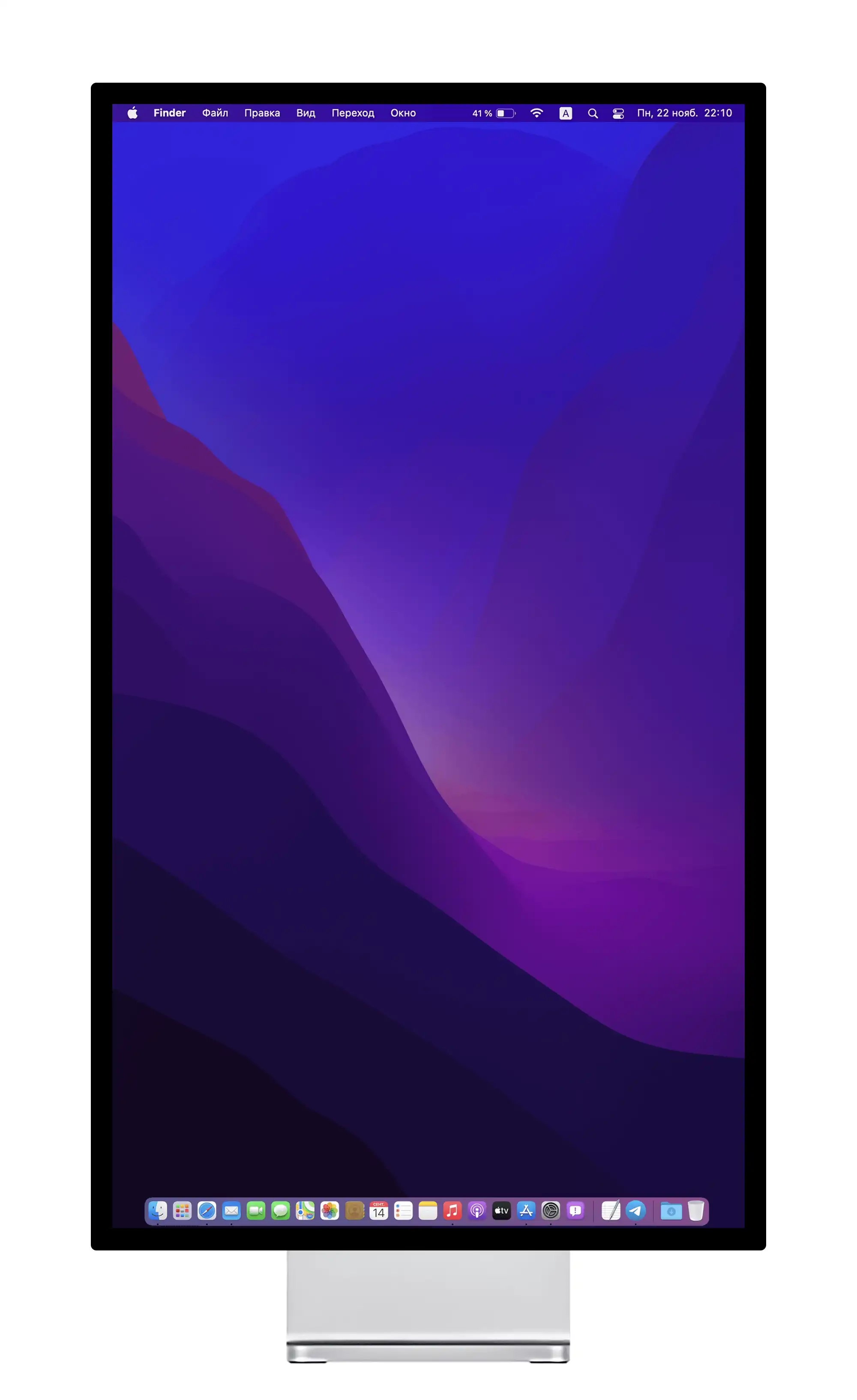
In mirroring mode, the monitor shows the iPad screen as it is, and its format is not 16:9. With an extended display, the workspace fills the whole monitor.
Does the monitor charge the iPad?
Yes. The USB-C input of Kuycon monitors delivers up to 100 W of charging, much more than an iPad needs, over the same cable as the image.
Do I need a keyboard and a mouse?
For mirroring, no. For an extended display, yes in practice: windows on the monitor are moved and used with a pointer and a keyboard.
A desk for your iPad
A single USB-C cable, a sharp image and charging included. Shipped from Europe, with after-sales service in Europe.
See the rangeGuide written in October 2026 from Apple's documentation for iPadOS 26 and the manufacturer's specifications.